How to Use Face Swap in PicsArt (Step-by-Step Guide)
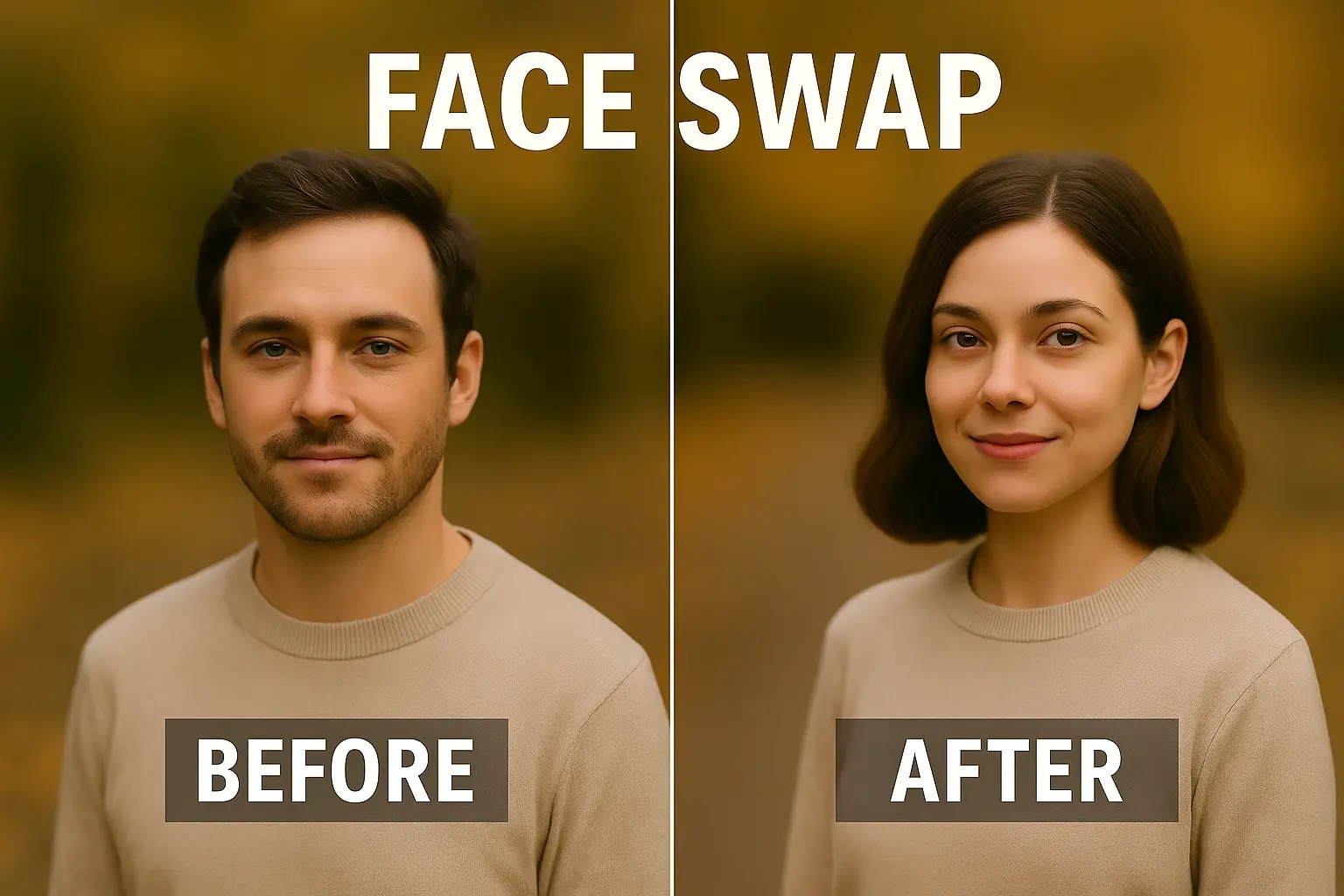
Face swap editing is one of the most fun and viral features of modern photo editing. Whether it’s for creating memes, experimenting with creative concepts, or making light-hearted content, PicsArt Mod APK lets you swap faces in just a few taps using AI-powered tools.
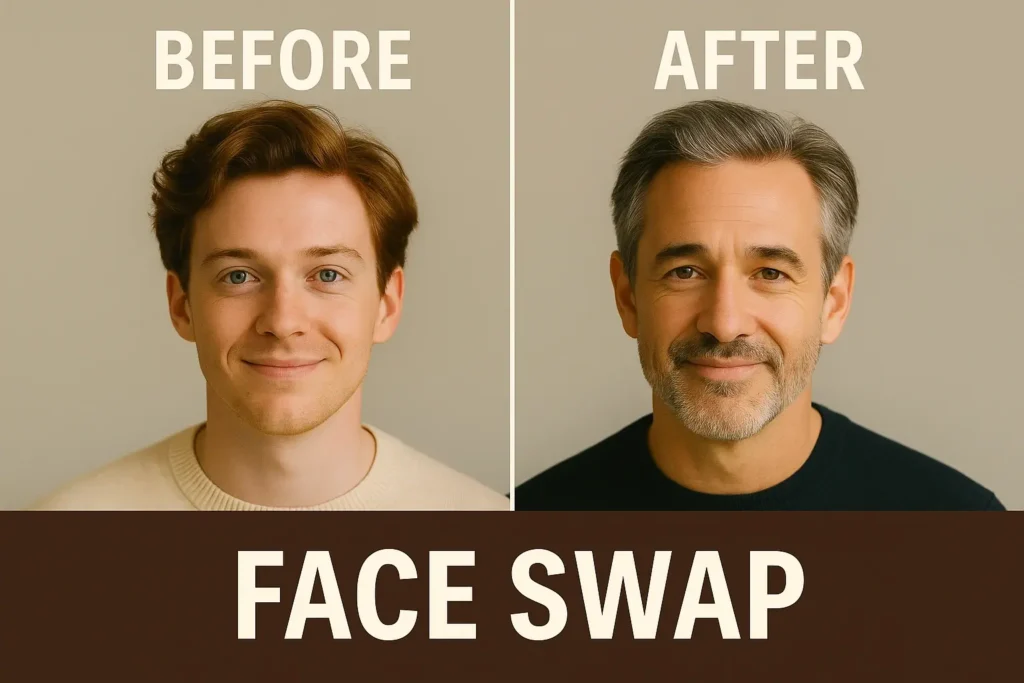
Unlike complex Photoshop workflows, PicsArt’s built-in Face Swap tool is fast, beginner-friendly, and available on Android, iPhone, and even PC via emulator. In this guide, you’ll learn step by step how to do realistic face swaps like a pro.
Why Face Swap is So Popular
Face swapping allows you to:
- Experiment with creative concepts & storytelling
- Create meme content that goes viral easily
- Add faces to characters, posters, or products
- Create portraits with cinematic and fun effects
It’s a favorite among influencers, content creators, and designers who want eye-catching posts without complicated software.
How to Use the Face Swap Tool in PicsArt –Step by Step
Step 1: Open the PicsArt App & Import Your Images
- Launch PicsArt on your device.
- Tap “Edit” and select the base photo where the new face will be placed.
- Import the second image with the face you want to use.
Tip: Choose well-lit, front-facing photos for best blending results.
Step 2: Use the Cutout Tool to Select the Face
- Tap “Cutout” from the toolbar.
- Carefully outline or let the AI auto-select the face area.
- Refine edges using the Eraser and Restore tools.
- Tap “Save” to convert it into a transparent sticker layer.
Pro Tip: For better realism, leave a small part of the hairline and neck for smoother blending.
Step 3: Place the Face on the Base Image
- Drag and resize the cutout face layer.
- Align it with the original subject’s facial features.
- Use rotate and perspective adjustments for better alignment.
If you want to prepare cleaner cutouts before face swapping, check out our eyebrow editing guide in PicsArt to keep your edits looking cinematic.
Step 4: Blend It for Realism
- Open the Blend Mode options.
- Try “Overlay,” “Multiply,” or “Soft Light” for natural transitions.
- Adjust opacity and use the Eraser tool softly around the edges.
For advanced blending, you can use:
- Brightness & Contrast adjustments
- Tone correction to match skin tone
- Smooth filter to blend layers seamlessly
Step 5: Final Touches & Export
- Add stickers, text, or filters if needed.
- Apply a unified filter on the whole image to make both faces match in tone.
- Tap “Next” and export your final image in JPG or PNG.
And that’s it — your realistic face swap is done in just a few minutes.
Advanced Face Swap Tricks
To make your edits stand out:
- Use high-resolution photos for both faces.
- Match lighting direction for natural blending.
- Apply LUT or color grading filters after swapping.
- Adjust perspective so the face aligns naturally with head shape.
If you want to turn your face swap into a collage layout, read our collage maker tutorial.
Face Swap on PC
If you prefer editing on a desktop for more precision:
- Install Bluestacks or LD Player.
- Download and open PicsArt Mod APK.
- Follow the same steps as on mobile.
- Use your mouse to fine-tune cutouts, blending, and placements.
This method is ideal for creators who want pro-level results with easier control.
Tips for Better Face Swap Results
- Align the new face with the same angle as the base image.
- Use light filters to unify both images.
- Avoid extreme expressions — neutral faces swap more smoothly.
- Don’t over-blur — keep natural details.
Conclusion
Face swapping in PicsArt isn’t just fun — it’s a powerful creative editing technique that can transform your photos into scroll-stopping content. With tools like Cutout, Blend, and Filters, even beginners can achieve realistic edits without expensive software.
Start exploring with PicsArt Mod APK today and combine face swapping with collages, blur effects, and stickers for unique results.
FAQs
Is the face swap tool free in PicsArt?
Yes. Basic tools are free. Premium features (like advanced blending) may be unlocked in modded versions.
Does face swap work offline?
Yes, after installing the app, you can use it without internet.
Can I use face swap for videos?
Currently, PicsArt’s face swap works best for photos. For videos, use third-party AI editors.
Is using PicsArt Mod APK safe?
Only download from trusted sources and use it responsibly. This guide is for informational purposes only.