How to Edit Eyebrows in PicsArt for Perfect, Natural Results
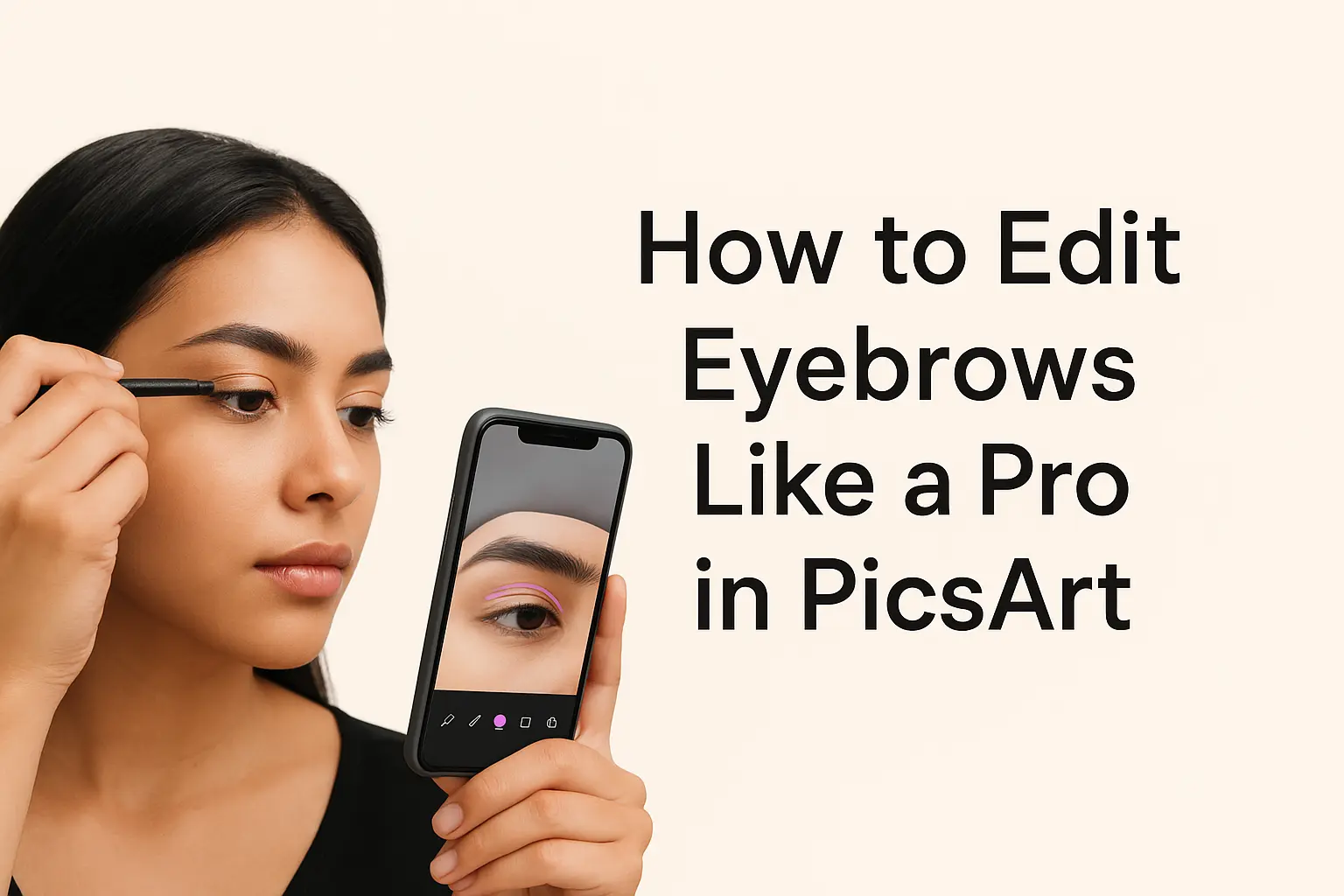
Your eyebrows shape your entire expression — they define confidence, symmetry, and personal style. Whether you want to fix uneven arches, fill in sparse areas, or match a new hair color, PicsArt makes eyebrow editing simple, realistic, and fun.
In this complete tutorial, you’ll learn how to:
- Shape and define brows naturally
- Match color tones using the PicsArt color picker
- Add depth and highlights for a 3D effect
- Avoid over-editing mistakes most beginners make
Let’s turn your selfies into flawless portraits with natural-looking brows!
Understanding Brow Shapes & Styles
Before editing, know which eyebrow shape suits your face. The wrong arch or thickness can make photos look unnatural.
| Face Shape | Best Brow Style | Pro Tip |
|---|---|---|
| Round | Soft-angled or high-arched | Adds lift and balance |
| Oval | Natural arch | Keeps proportions gentle |
| Square | Slight curve | Softens strong jawlines |
| Heart | Rounded arch | Complements sharp chin |
Use the brow mapping golden ratio rule: the brow should start above the nostril, arch at the outer iris, and end diagonally at the eye’s outer corner.
Tools You’ll Need in PicsArt
- PicsArt App (free or Gold version)
- A high-resolution portrait photo
- (Optional) A stylus for precise drawing
- Stable lighting for natural color editing
PicsArt Tools Used:
- Draw / Brush tool → for filling & shaping
- Color Picker → for natural color match
- Blend / Smudge → for soft feather effect
- Opacity control → to make brows look real
- Layers → for editing flexibility
Step-by-Step: How to Edit Eyebrows in PicsArt
Step 1: Open Your Photo
Launch PicsArt → tap Edit → choose your portrait photo.
Zoom in on your brows to see fine details.
Step 2: Create a New Layer
Tap Layers > Add New Layer. This keeps your edits separate so you can adjust opacity later.
Step 3: Map the Brow Shape
Select the Draw tool, choose a thin brush, and outline your brow following the natural direction of hair growth. Use symmetry guidelines if both brows need adjustment.
Step 4: Fill in Sparse Areas
Use a feathered soft brush and short, light strokes. Follow the brow’s natural curve. This mimics real hair strands and prevents blocky patches.
Step 5: Adjust Shape, Arch & Thickness
Need a lift or softer angle? Slightly reshape the arch using the eraser or redraw tool. Keep both brows balanced using the Mirror Tool.
Step 6: Blend & Soften for Realism
Use the Smudge or Blend tool to soften harsh edges. Lower brush opacity to 30–50% for the most natural fade — also known as the feathered brow effect.
Step 7: Add Highlights & Shadows
To create a 3D effect, use a smaller brush:
- Light tone above the arch for highlight
- Slightly darker tone under the brow tail for depth
Step 8: Adjust Opacity & Final Touches
Lower the eyebrow layer opacity until it blends perfectly with your skin. Add texture if needed for a natural hair finish.
Step 9: Save & Export
Tap Save → choose High Quality (HD) for clear results on social media.
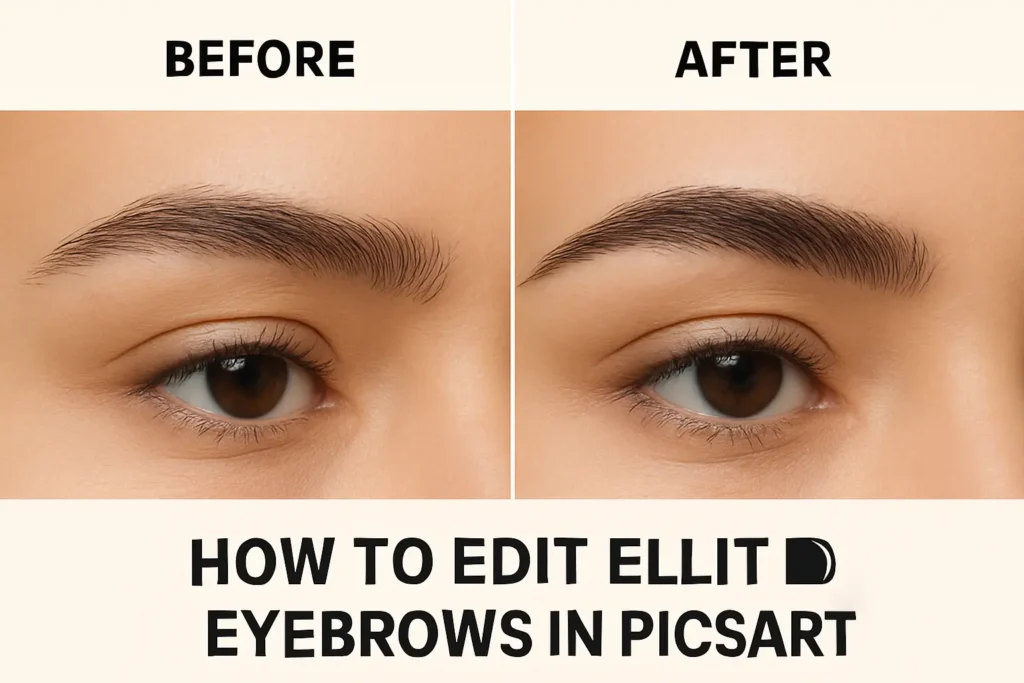
💡 Pro Tip: Create a before-after comparison to showcase your eyebrow glow-up.
Pro Tips for Perfect Brows in PicsArt
✅ Use Natural Lighting: It helps color match your brows perfectly.
✅ Color Consistency: Match eyebrow shade with your hair roots, not ends.
✅ Feathered Brow Effect: Always use thin, short strokes.
✅ Avoid Over-Editing: Real brows aren’t perfectly sharp — keep slight texture.
✅ Use References: Follow celebrity or influencer brow styles for inspiration.
Common Mistakes & Fixes
| Mistake | Result | Quick Fix |
|---|---|---|
| Overfilled brows | Looks fake | Reduce opacity or erase excess strokes |
| Wrong brow color | Mismatch | Use color picker or adjust hue |
| Too sharp edges | Unrealistic | Blend gently using smudge tool |
| Asymmetrical brows | Unbalanced | Use symmetry guide or mirror feature |
PicsArt vs Other Brow Editing Apps
| Feature | PicsArt | FaceTune | Snapseed |
|---|---|---|---|
| Custom Brushes | ✅ | ❌ | ❌ |
| Layers | ✅ | ✅ | ❌ |
| AI Enhancer | ✅ | ✅ | ✅ |
| Free Version Quality | ⭐⭐⭐⭐ | ⭐⭐ | ⭐⭐ |
PicsArt’s layer editing + blending tools make it ideal for natural brow retouching without harsh lines or over-filtering.
Eyebrow Trends 2025
Stay ahead of beauty trends with these hot looks:
- Feathered Brows: soft, natural, lifted.
- Ombre Brows: darker tails, lighter inner edges.
- Straight Korean-inspired Brows: youthful, balanced look.
- Digital Brow Makeover: using AI tools to preview styles before applying makeup.
9. Before & After Gallery
FAQs
Can I edit eyebrows with the free PicsArt app?
Yes. Most tools like Draw, Blend, and Color Picker are free. Gold version offers premium brushes and filters.
How do I make my brow edits look realistic?
Use light feather strokes, blend softly, and lower opacity. Avoid uniform color fills.
Is it safe to use PicsArt MOD APK for eyebrow editing?
It’s not recommended — unofficial versions may risk privacy or data safety. Always use the official PicsArt app.
What’s the best brush for filling eyebrows?
Use a soft round brush with 2–5 px size and low opacity for natural hair-like texture.
Conclusion
Editing eyebrows in PicsArt is all about subtlety. With light strokes, proper blending, and the right color match, you can enhance your brows while keeping them natural and realistic. Use layers, adjust opacity, and avoid over-editing for the best results. With a little practice, PicsArt makes it easy to achieve clean, balanced brows in just a few minutes.