How to Create Stunning Collages in PicsArt (Full Tutorial)
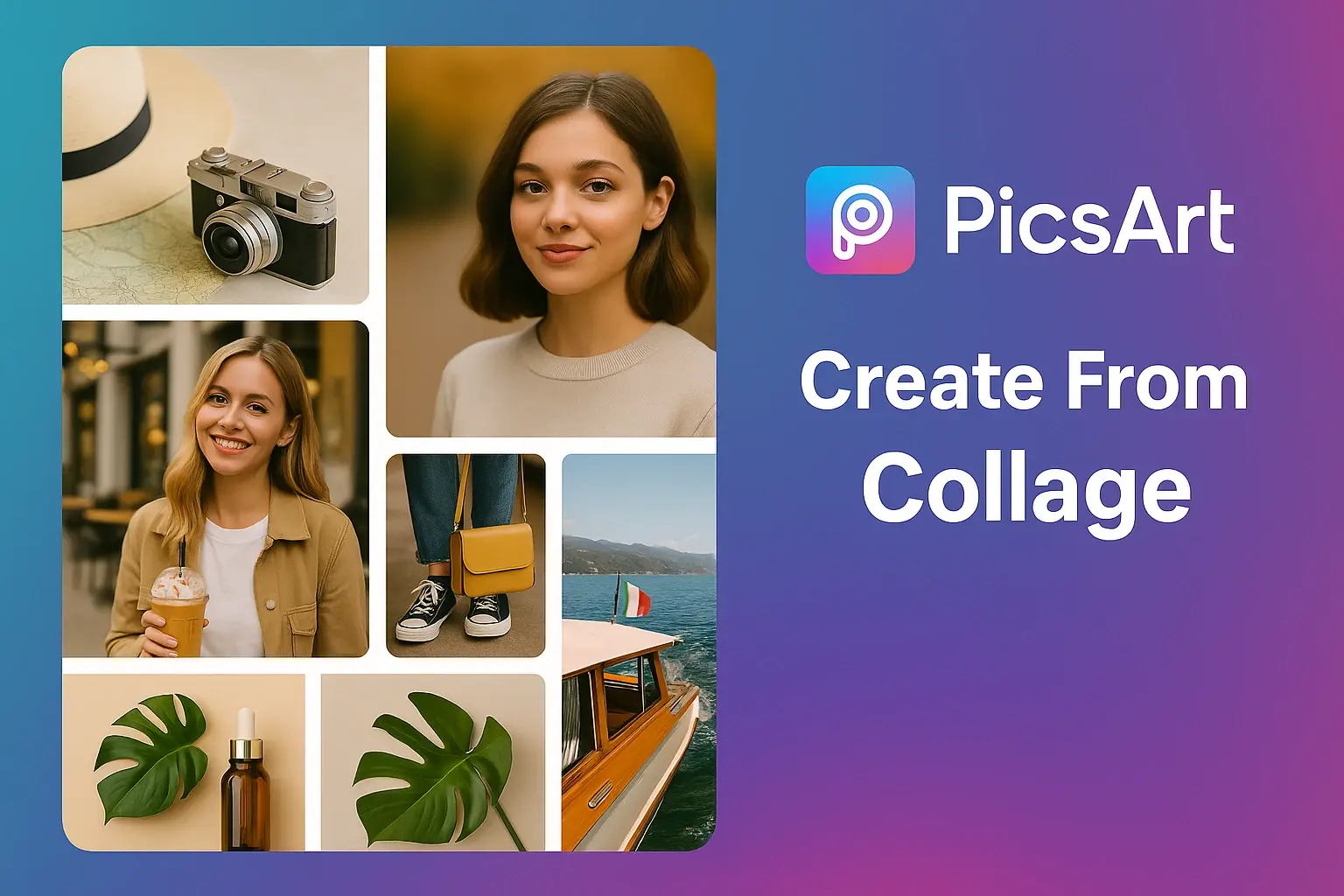
Collages are one of the most popular ways to tell a story visually — whether it’s travel photos, product promotions, or lifestyle content. With Picsart apk pro, anyone can create professional-looking collages using built-in templates, freestyle tools, and a creative editor that’s powerful yet beginner-friendly.
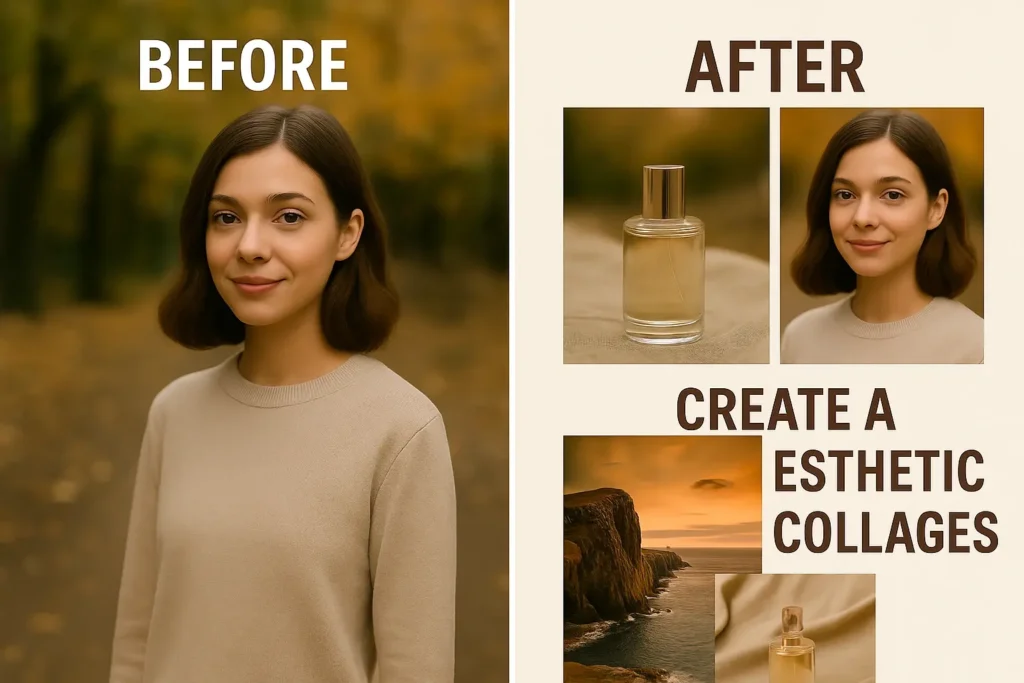
In this guide, we’ll walk you step by step on how to make aesthetic collages on Android, iPhone, or PC and connect this feature with other tools like blur, stickers, and Quick Tools for advanced effects.
Why Collages Are So Effective in Visual Storytelling
Collages do more than just display multiple images. They help:
- Create cohesive visual stories.
- Highlight key moments or product features.
- Grab attention on Instagram, Pinterest, and TikTok.
- Make brand visuals more appealing and memorable.
Unlike ordinary grid tools, PicsArt offers freestyle layouts, border controls, shape cropping, and layer adjustments to give your designs a premium touch.
How to Make Collages in PicsArt — Step by Step
Step 1: Open the PicsArt App and Choose “Collage”
- Launch PicsArt on your device.
- Tap the “Collage” button on the home screen.
- Select your layout style:
- Grid: Perfect for clean, minimal layouts.
- Freestyle: For creative storytelling.
- Frames: Best for themed posts like birthdays or product launches.
- Grid: Perfect for clean, minimal layouts.
Tip: If you’re using PicsArt Mod APK, you’ll also unlock more premium collage templates and frame packs.
Step 2: Select Your Photos
- Choose 2 to 10 images from your gallery.
- PicsArt will auto-fit them into your selected template.
- You can rearrange, resize, and crop each photo easily.
Pro Tip: Use photos with similar lighting or theme to make your collage more cohesive.
Step 3: Customize Your Layout
- Adjust spacing between images.
- Add rounded corners or border colors for a polished look.
- Tap and drag images to rearrange their position inside the collage.
If you want to enhance your photos before adding them to the collage, check out our guide to blur background in PicsArt for a more cinematic look.
Step 4: Add Stickers, Text & Effects
- Use stickers, brushes, and text overlays to add personality.
- PicsArt Mod APK unlocks premium stickers, gradient text styles, and fonts for free.
- Add shadow, glow, or outline effects to make your text pop.
Learn how to create custom stickers in PicsArt to make your collage unique.
Step 5: Apply Filters and Finishing Touches
- Experiment with LUT filters, light leaks, or glitch overlays.
- Adjust brightness, contrast, and color tone for a uniform aesthetic.
- You can even apply blur effects to background layers for depth.
Step 6: Export and Share
- Tap “Next” and export your collage in JPG or PNG.
- Choose aspect ratios like 9:16 (Reels), 1:1 (Instagram), or 4:5 (Pinterest).
- Share directly on social media or save it in your gallery.
Advanced Collage Tricks in PicsArt
To make your collages stand out:
- Use transparent PNG stickers as overlays.
- Combine text + shape masking for modern designs.
- Add drop shadows for 3D effects.
- Layer filters selectively for pro-grade visuals.
Collage Editing on PC Using Emulator
If you prefer editing on a big screen:
- Install Bluestacks or LD Player.
- Download and open PicsArt Mod APK.
- Go to the Collage section and follow the same steps.
- Benefit from precise mouse control and faster rendering.
This setup is perfect for designers and marketers creating branded content.
Pro Tips for Aesthetic Collages
- Choose a color palette that fits your brand.
- Keep spacing even for a clean look.
- Use similar filters on all photos.
- Add subtle text overlays for storytelling.
- Avoid overcrowding — less is more.
Conclusion
Creating collages with PicsArt is fast, easy, and highly customizable. Whether you want to tell a personal story or build branded content, the collage maker tool gives you the flexibility to design like a pro — right from your phone or PC.
FAQs
Is the collage tool free on PicsArt?
Yes, the standard collage maker is free. Mod versions unlock extra templates and frames.
Can I create collages offline?
Yes. Once the app is installed, you can make collages without internet access.
Can I export in different sizes?
Yes. You can choose square, vertical, or custom ratios suitable for Instagram, Reels, Pinterest, or Facebook.
Is it safe to use PicsArt Mod APK?
The app’s premium tools can be accessed in unofficial versions, but always use them responsibly and avoid hosting files.