How to Cancel PicsArt Subscription in 2025 (Gold & Free Plans)
Whether you subscribed to PicsArt for advanced filters or AI tools, there may come a time when you want to cancel your subscription. Maybe you’ve found a better app, maybe the price isn’t right anymore, or maybe you just want a break from editing.
Whatever the reason, canceling PicsArt subscription is quick and straightforward — if you know the right steps.
This guide explains how to cancel PicsArt Gold or Free plans on Android, iPhone/iPad, Microsoft PC, Web, and PayPal, along with refund policies, pros and cons, and FAQs.
Why Users Cancel PicsArt Subscription
Many users cancel their subscriptions not because PicsArt isn’t good — but because their needs change over time.
Here are the most common reasons:
- Better alternatives available: Many editing apps now offer advanced tools for free.
- Budget issues: Subscription fees add up.
- Free trial expired: Users cancel before renewal.
- Unsatisfied with performance: Slow updates, glitches, or missing features.
- No longer needed: Some users subscribed for one-time projects only.
Step-by-Step — How to Cancel PicsArt Subscription on All Devices
Canceling your subscription looks slightly different depending on where you signed up (Google Play, App Store, Web, PayPal, or Microsoft Store). Follow the step-by-step guides below.
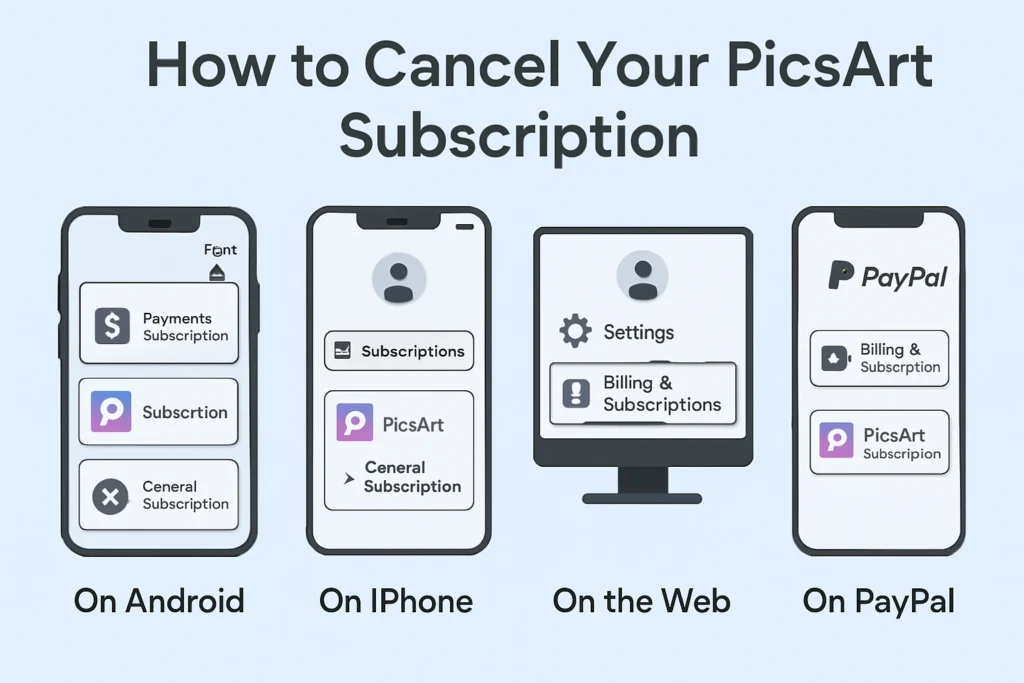
📱 Cancel PicsArt Subscription on Android
- Open the Google Play Store on your Android phone.
- Tap on your Profile icon in the top right corner.
- Go to Payments & subscriptions.
- Tap Subscriptions.
- Select PicsArt subscription.
- Tap Cancel subscription and confirm.
Pro Tip: Make sure you’re signed in with the same Google account used for purchasing.
🍏 Cancel PicsArt Subscription on iPhone / iPad
- Open Settings on your iPhone or iPad.
- Tap your Apple ID at the top.
- Select Subscriptions.
- Tap on PicsArt from the list.
- Tap Cancel Subscription and confirm.
📝 Note: If you don’t see PicsArt listed, double-check the Apple ID used for the purchase.
💻 Cancel PicsArt Subscription on PC (Microsoft Store)
- Log into your Microsoft Account.
- Go to Services & Subscriptions.
- Find PicsArt.
- Click Manage, then select Cancel Subscription.
- Confirm to finalize cancellation.
This method is ideal for users who installed PicsArt through the Microsoft Store.
🌐 Cancel PicsArt Subscription on the Web
- Go to the official PicsArt website.
- Log in using the account tied to your subscription.
- Click your profile icon.
- Go to Settings → Billing & Subscription.
- Click Cancel Subscription and confirm.
💳 Cancel PicsArt Subscription via PayPal
- Log into your PayPal account.
- Go to Payments & Subscriptions.
- Locate your PicsArt payment.
- Click Manage → Cancel Subscription.
- Confirm cancellation.
📩 PayPal will also send a confirmation email once your subscription is successfully canceled.
Refund Policy — What Happens After You Cancel?
Canceling a PicsArt subscription does not automatically trigger a refund.
Here’s how it usually works:
- You keep access to premium features until the billing period ends.
- Refunds depend on the platform (Google Play, Apple, Microsoft, or PayPal).
- If your subscription renews automatically, canceling it stops future charges.
- Some users may be eligible for a partial refund if requested early.
Learn more about refunds in our dedicated PicsArt Refund Policy Guide.
Pros and Cons of Canceling PicsArt Subscription
| ✅ Pros | ❌ Cons |
| Save monthly cost | Lose access to premium filters and effects |
| Avoid auto-renewal | No more priority support |
| Try other apps / alternatives | Limited export quality |
| Reduce digital clutter | Lose AI tools, templates, and stickers |
| Better control over budget | Some features revert to basic mode |
Final Thoughts
Canceling your PicsArt subscription is not the end of your creative journey. Whether you’re switching to another app, managing your budget, or simply taking a break, this process is simple and fast on every platform.
You can always resubscribe later — or explore budget-friendly options like PicsArt Mod APK to keep creating without paying extra.
FAQs — Canceling PicsArt Subscription
Q1. How do I cancel PicsArt subscription on Android and iPhone?
A: On Android, cancel from Google Play Store. On iPhone, cancel from Apple ID Subscriptions.
Q2. Will my photos and designs be deleted after cancellation?
A: No. Your account remains active. You’ll still have access to free tools.
Q3. Can I get a refund after canceling?
A: Refund eligibility depends on your payment method (Google Play, App Store, PayPal, etc.).
Q4. Will PicsArt automatically charge me again if I don’t cancel?
A: Yes. If you don’t cancel, the subscription renews automatically.
Q5. Can I resubscribe later?
A: Yes, you can easily reactivate your subscription any time.
Q6. What happens to Gold features after canceling?
A: Premium features remain available until your current billing period ends.