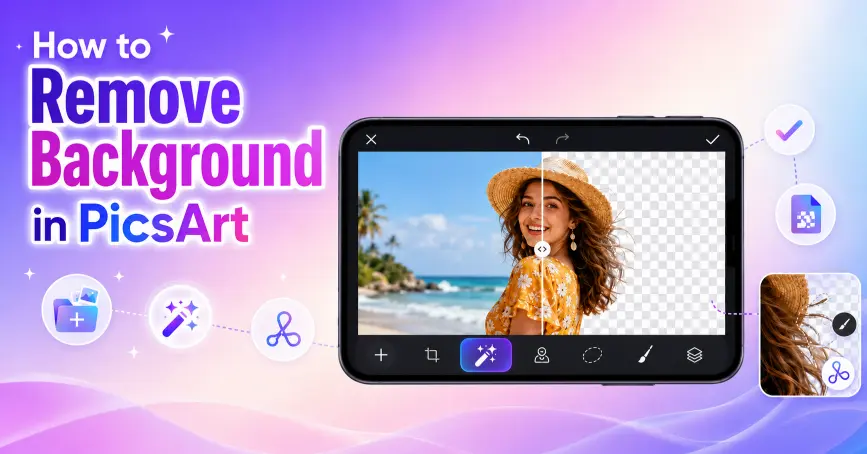
How to Remove Background in PicsArt (2026 Step-by-Step Guide)
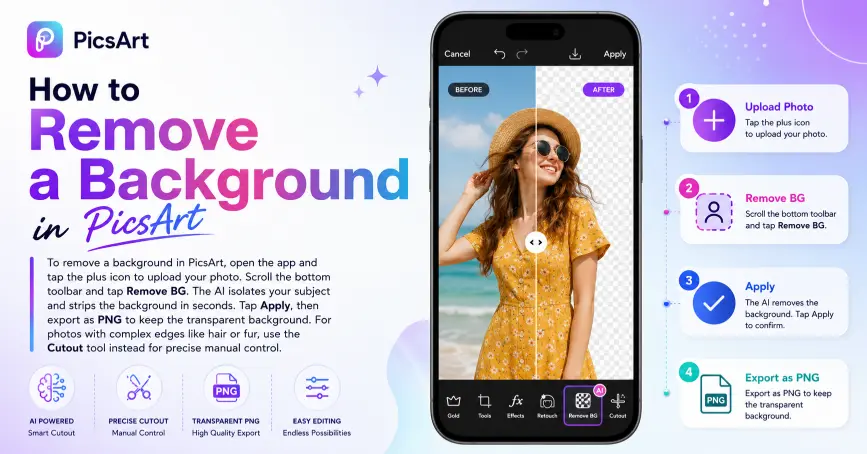
To remove a background in PicsArt, open the app and tap the plus icon to upload your photo. Scroll the bottom toolbar and tap Remove BG. The AI isolates your subject and strips the background in seconds. Tap Apply, then export as PNG to keep the transparent background. For photos with complex edges like hair or fur, use the Cutout tool instead for precise manual control.
Why Use PicsArt for Background Removal?
Background removal used to take twenty minutes in desktop software like Adobe Photoshop. PicsArt does the same job in under ten seconds using on-device AI that handles portraits, product shots, pets, and creative composites with impressive accuracy. Whether you are building a YouTube thumbnail, cleaning up an e-commerce product image, or swapping a plain background for a branded scene on Instagram, PicsArt gives you two dedicated tools to get it done fast and cleanly.
The Remove BG tool handles automatic one-tap removal. The Cutout tool gives you manual precision for complex subjects. Knowing when to use each one is what separates a clean professional result from a rough edge that gives away the edit.
Method 1: Remove BG Tool (Fastest Method)
This is the right starting point for most photos. It works best when there is clear contrast between your subject and the background, such as a person against a plain wall, a product on a solid surface, or a portrait with a simple outdoor backdrop.
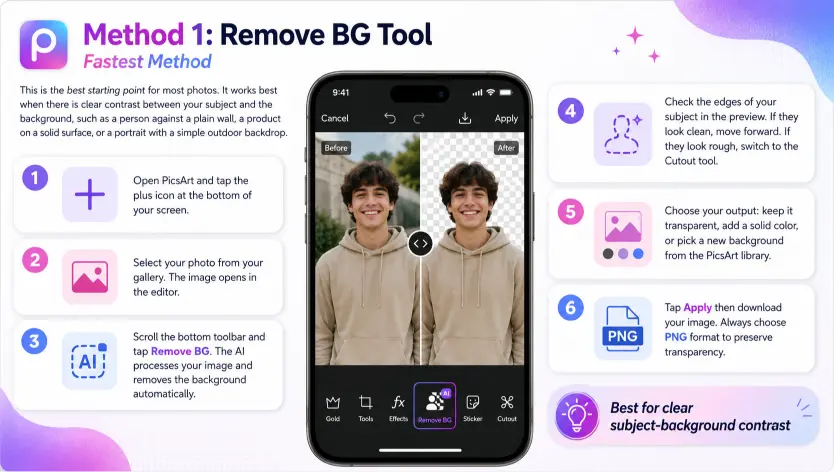
- Step 1: Open PicsArt and tap the plus icon at the bottom of your screen.
- Step 2: Select your photo from your gallery. The image opens in the editor.
- Step 3: Scroll the bottom toolbar and tap Remove BG. The AI processes your image and removes the background automatically.
- Step 4: Check the edges of your subject in the preview. If they look clean, move forward. If they look rough, switch to the Cutout tool.
- Step 5: Choose your output: keep it transparent, add a solid color, or pick a new background from the PicsArt library.
- Step 6: Tap Apply then download your image. Always choose PNG format to preserve transparency.
Method 2: Cutout Tool (Best for Complex Subjects)
The Cutout tool is the right choice when your subject has curly or flyaway hair, soft fabric edges, overlapping elements, or any area where the one-tap result left messy or missing sections. It gives you direct control using smart selection modes and manual erase and restore brushes.
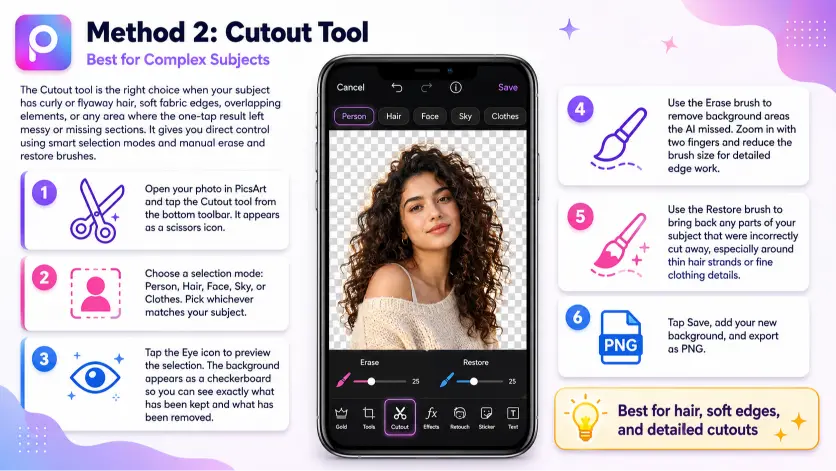
- Step 1: Open your photo in PicsArt and tap the Cutout tool from the bottom toolbar. It appears as a scissors icon.
- Step 2: Choose a selection mode: Person, Hair, Face, Sky, or Clothes. Pick whichever matches your subject.
- Step 3: Tap the Eye icon to preview the selection. The background appears as a checkerboard so you can see exactly what has been kept and what has been removed.
- Step 4: Use the Erase brush to remove background areas the AI missed. Zoom in with two fingers and reduce the brush size for detailed edge work.
- Step 5: Use the Restore brush to bring back any parts of your subject that were incorrectly cut away, especially around thin hair strands or fine clothing details.
- Step 6: Tap Save, add your new background, and export as PNG.
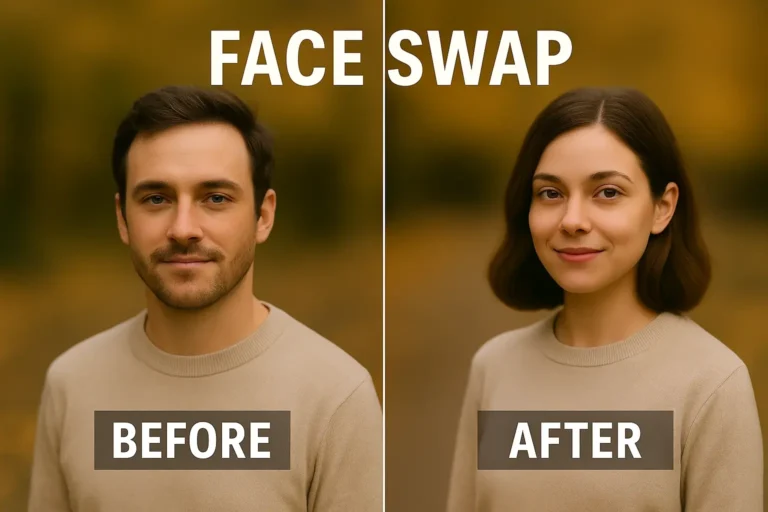
Swap faces in PicsArt – Learn how to quickly swap faces in your photos with PicsArt.
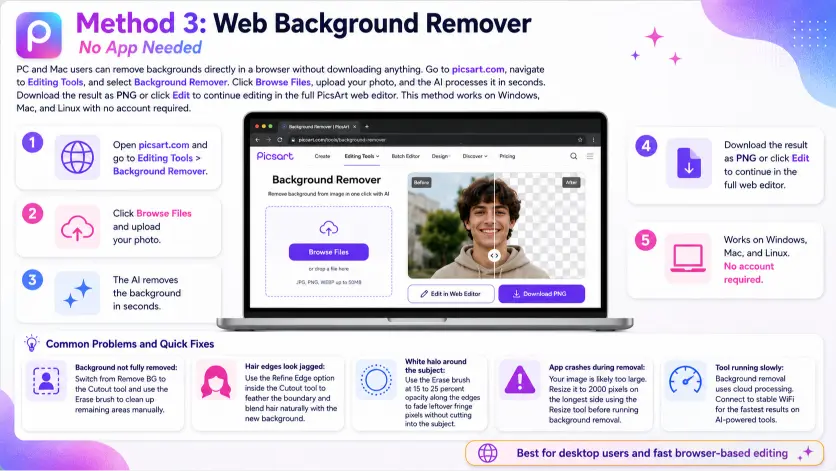
Method 3: Web Background Remover (No App Needed)
PC and Mac users can remove backgrounds directly in a browser without downloading anything. Go to picsart.com, navigate to Editing Tools, and select Background Remover. Click Browse Files, upload your photo, and the AI processes it in seconds. Download the result as PNG or click Edit to continue editing in the full PicsArt web editor. This method works on Windows, Mac, and Linux with no account required.
Cancel your PicsArt subscription – Follow these steps to easily cancel your PicsArt subscription.
Common Problems and Quick Fixes
- Background not fully removed: Switch from Remove BG to the Cutout tool and use the Erase brush to clean up remaining areas manually.
- Hair edges look jagged: Use the Refine Edge option inside the Cutout tool to feather the boundary and blend hair naturally with the new background.
- White halo around the subject: Use the Erase brush at 15 to 25 percent opacity along the edges to fade leftover fringe pixels without cutting into the subject.
- App crashes during removal: Your image is likely too large. Resize it to 2000 pixels on the longest side using the Resize tool before running background removal.
- Tool running slowly: Background removal uses cloud processing. Connect to stable WiFi for the fastest results on AI-powered tools.
Final Thoughts
PicsArt gives you two genuinely powerful background removal tools that cover every editing scenario from a quick one-tap product shot cleanup to a detailed portrait composite with refined hair edges. Start with Remove BG for speed and switch to Cutout whenever precision matters. Always export as PNG to preserve transparency, and use the Refine Edge feature any time you are placing your subject on a new background.
If you use PicsArt MOD APK, background removal comes with no credit limits, the full premium background library unlocked, and the AI Image Generator to create custom scenes from scratch. It turns a strong tool into a complete background editing studio for every content creation use case.
Frequently Asked Questions
Is the PicsArt background remover free?
The basic Remove BG tool is free. Premium background replacements and AI-generated scenes require a Gold subscription or the PicsArt MOD APK, which unlocks everything at no cost.
How do I export with a transparent background?
After removing the background, do not add a new one. Leave the checkerboard pattern as it is and export as PNG. JPEG does not support transparency and will fill the background with white automatically.
What is the difference between Remove BG and Cutout?
Remove BG is automatic and takes one tap. Cutout is manual and gives you full control over edge refinement. Use Remove BG for speed on simple images and Cutout for portraits with hair, animals with fur, or any subject with complex edges.
Can I remove backgrounds from multiple photos at once?
Yes, but only in the Gold version or PicsArt MOD APK. The Batch Edit feature lets you apply background removal to multiple images in one session, which is extremely useful for product catalogues and social media content.